
Samsung TV Remote Setup for ZVOX AccuVoice TV Speakers, Soundbars, and Soundbases
Program your Samsung Smart Remote to control your ZVOX
Compatible with Samsung Smart, Solar, and Voice Remotes
Before You Begin
This guide will walk you through setting up your Samsung TV's Universal Remote feature to control your ZVOX sound system. Make sure your ZVOX is connected to your TV's audio output and powered on before starting.
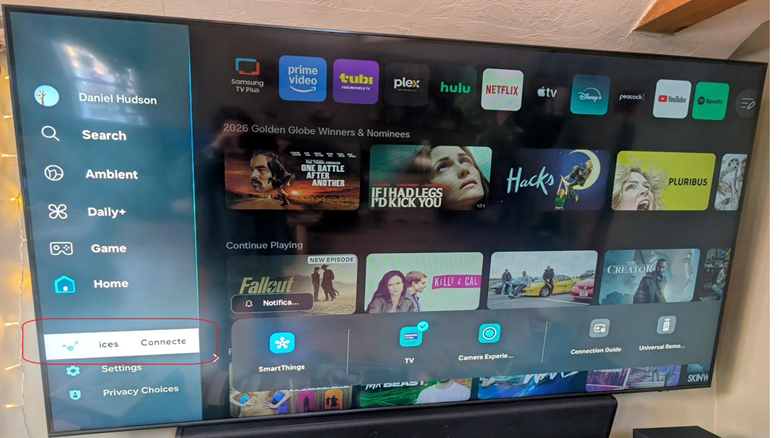
Step 1: Select Connected Devices
Press the Home button or Exit button on your Samsung remote to open the main menu. Navigate to and select Connected Devices.
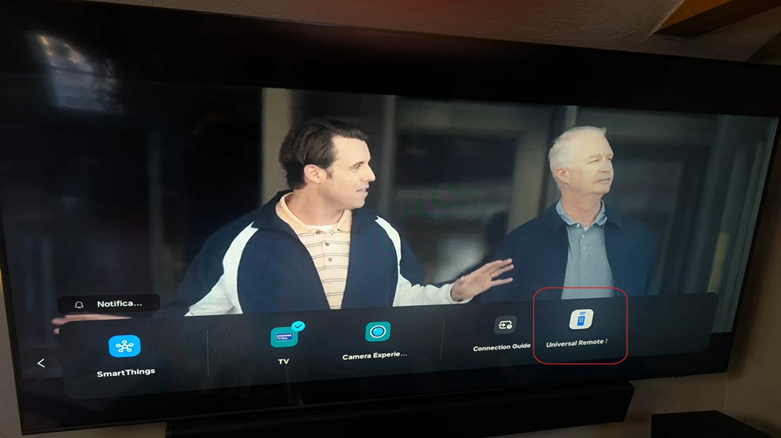
Step 2: Select Universal Remote
In the Connected Devices menu, scroll right and select Universal Remote. This feature allows your Samsung remote to control external devices like soundbars and AV receivers.
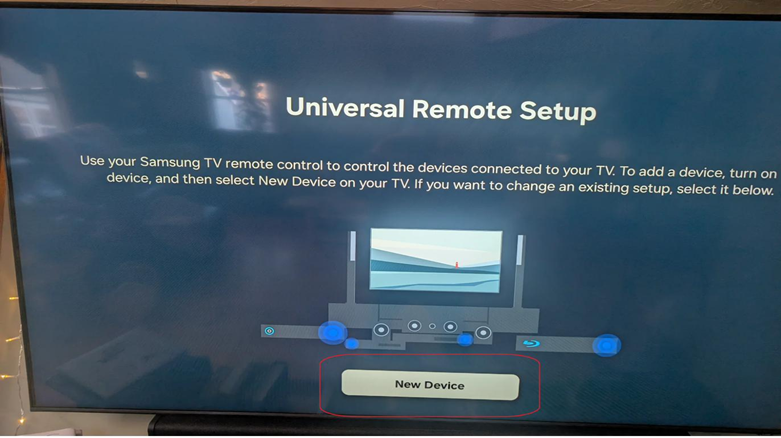
Step 3: Select New Device
On the Universal Remote Setup screen, select New Device to begin adding your ZVOX.
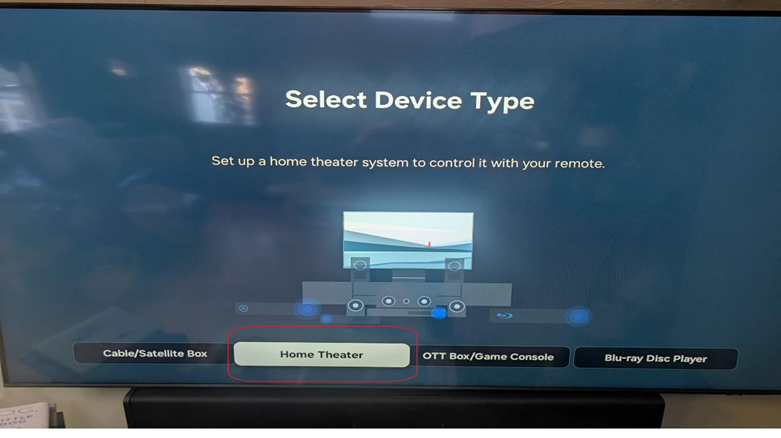
Step 4: Select Home Theater
When prompted to select the device type, choose Home Theater. This is the correct category for soundbars and sound systems like ZVOX.
Step 5: Select Search for the Brand
On the brand selection screen, select Search for the brand at the top. ZVOX may not appear in the default list of popular brands.

Step 6: Type in ZVOX
Using the on-screen keyboard, type ZVOX and then press the Go button to search for the brand.
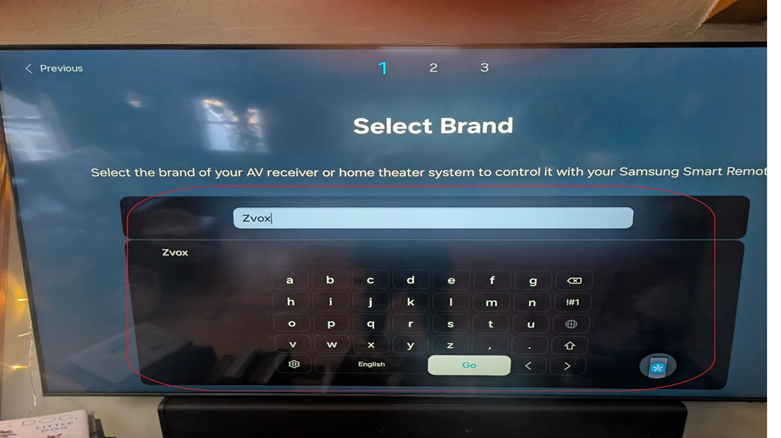
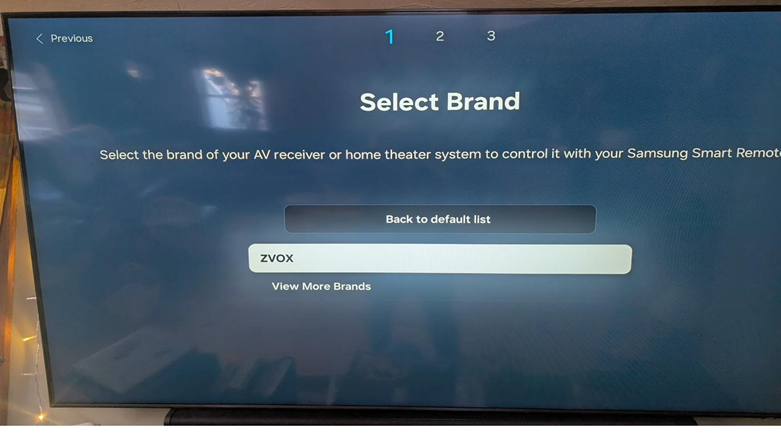
Step 7: Select ZVOX from the List
Once the search results appear, select ZVOX from the list to continue with the setup.
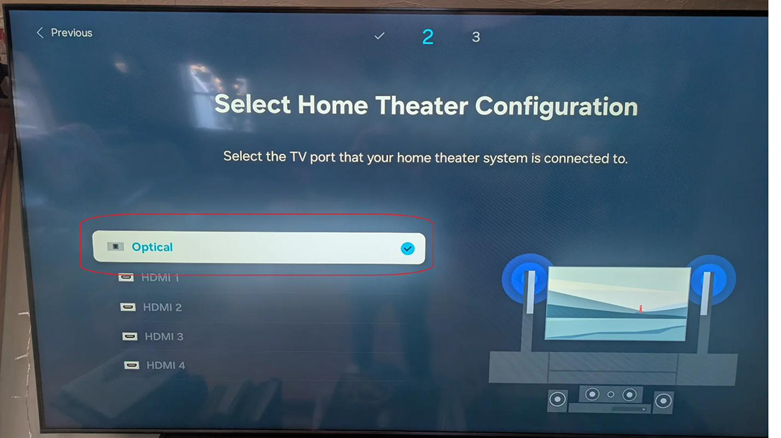
Step 8: Select Optical Connection
Select Optical if your ZVOX is connected to the TV's optical TOSLINK jack.
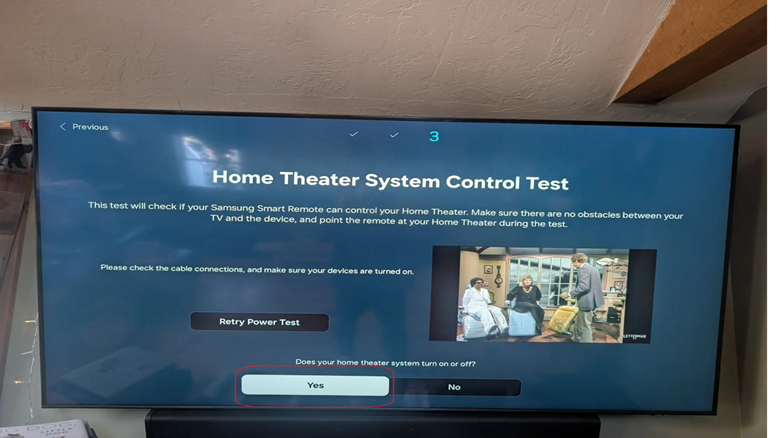
Step 9: Run the Power Test
IMPORTANT: Do NOT press the power button on your Samsung remote during this step.
Select Power Test to begin the test. Make sure your ZVOX is on and there are no obstacles between your TV and the ZVOX. Point the remote toward your ZVOX during the test.
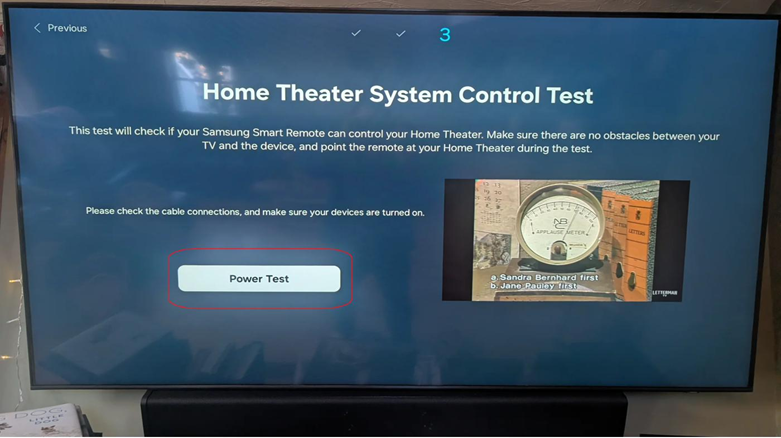
Step 10: Confirm the Test Result
If your ZVOX turned on or off during the Power Test, select Yes. This confirms that your Samsung remote can successfully control your ZVOX. If the ZVOX did not respond, select "No" to retry with a different configuration.
Step 11: Complete the Setup
On the Setup Complete screen, select Done to finish the configuration. Your Samsung remote is now programed to control your ZVOX sound system!
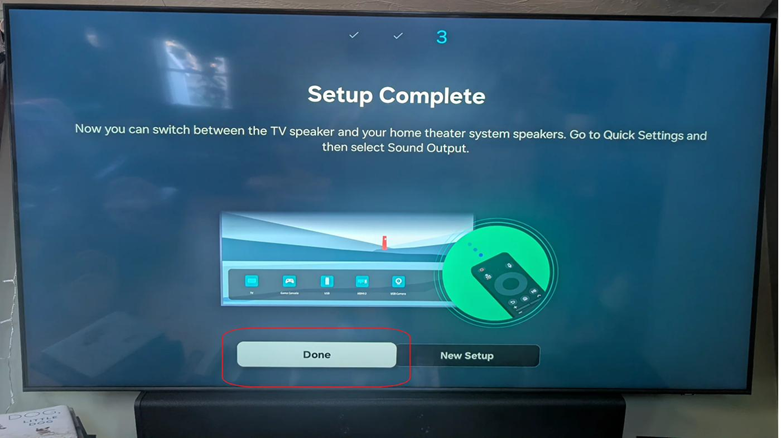
Setup Complete!
Your Samsung remote can now control your ZVOX sound system. Use the volume buttons on your Samsung remote to adjust the ZVOX volume. To switch between TV speakers and your ZVOX, go to Quick Settings and select Sound Output.
Instructions created with Samsung QN75Q72DDFXZA. These instructions will apply to most modern Samsung TVs that come with an RF remote (Smart, Solar, or Voice remote).
Still Need Help?
Please contact us at info@zvoxaudio.com or submit a new support ticket.